

Shared Packages
A package gathers ready-made funnels, pages and products into a single item that someone else imports straight into their account. It is the format producers use to hand affiliates a structure that is ready to sell.
Before you start: creating and publishing packages requires the Owner or Administrator role. See roles and permissions.
How the screen is organised
The Packages area separates the two sides of the relationship:
- My packages — the ones you created to distribute.
- Imported packages — the ones you received from someone else and brought into your account.
- Packages I am an affiliate for — the ones you joined as an affiliate.
Create and publish
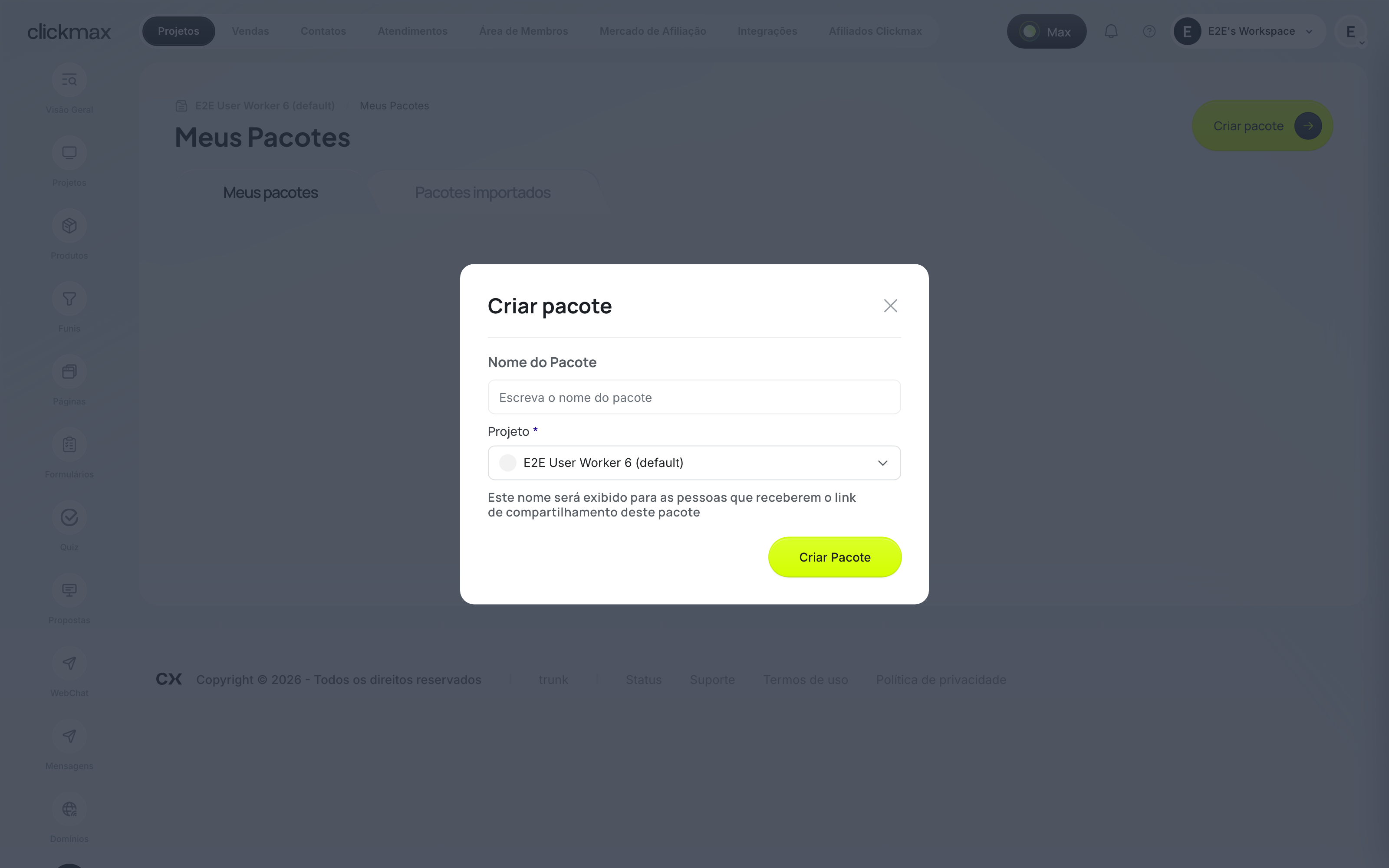
- In Packages, click Create package.
- Give it a name and a description — the description is what the affiliate reads before importing.
- Add the funnels, pages and products that make up the package.
- Enable affiliation if you want whoever imports it to be able to sell as an affiliate.
- Publish.
A package can be published with warnings — these flag items that need attention but do not block distribution. Once published, you share the link and track how many affiliates imported it under My Packages.
When you improve the material, anyone who already imported it can update the package to the latest version.
Package cover
The cover is the image that represents the package on its card. To upload, change or remove it:
- In My packages, open the package.
- In the ⋯ menu, click Configure.
- Under Package cover, click the image area or drag the file onto it. To change it, do the same with another image; to take the cover off, click Remove cover.
The cover is saved right away — no need for Save Changes. It accepts JPG, PNG, WebP or AVIF up to 5 MB. Use a 4:3 ratio — that is the card format, and anything outside it is cropped. Removing it takes the image offline.
Related
- Products
- Affiliates
- Shared package for producers — the full creation flow.
- Import a package as an affiliate
If it didn't work
- Publishing returns warnings: review the flagged items before sharing the link.
- Whoever imported it cannot see the product: check that affiliation is enabled on the package.
- The create button does not appear: see permissions.
- The cover does not upload: check the format (JPG, PNG, WebP or AVIF) and the size (up to 5 MB). SVG is not accepted.